Getting Started
Get started with Automate The Trades
From your first quote to your first invoice — here's everything you need to know.
Explore the Demo Organisation
Not ready to commit? Poke around a pre-loaded demo org first. Everything's real — real quotes, real jobs, real data.
Quotes
See example quotes in various states — draft, sent, and accepted.
Jobs
Active and completed jobs with line items, status tracking, and notes.
Contractors & Timesheets
Staff assigned to jobs with time logged and hours summarised.
Invoice Inbox
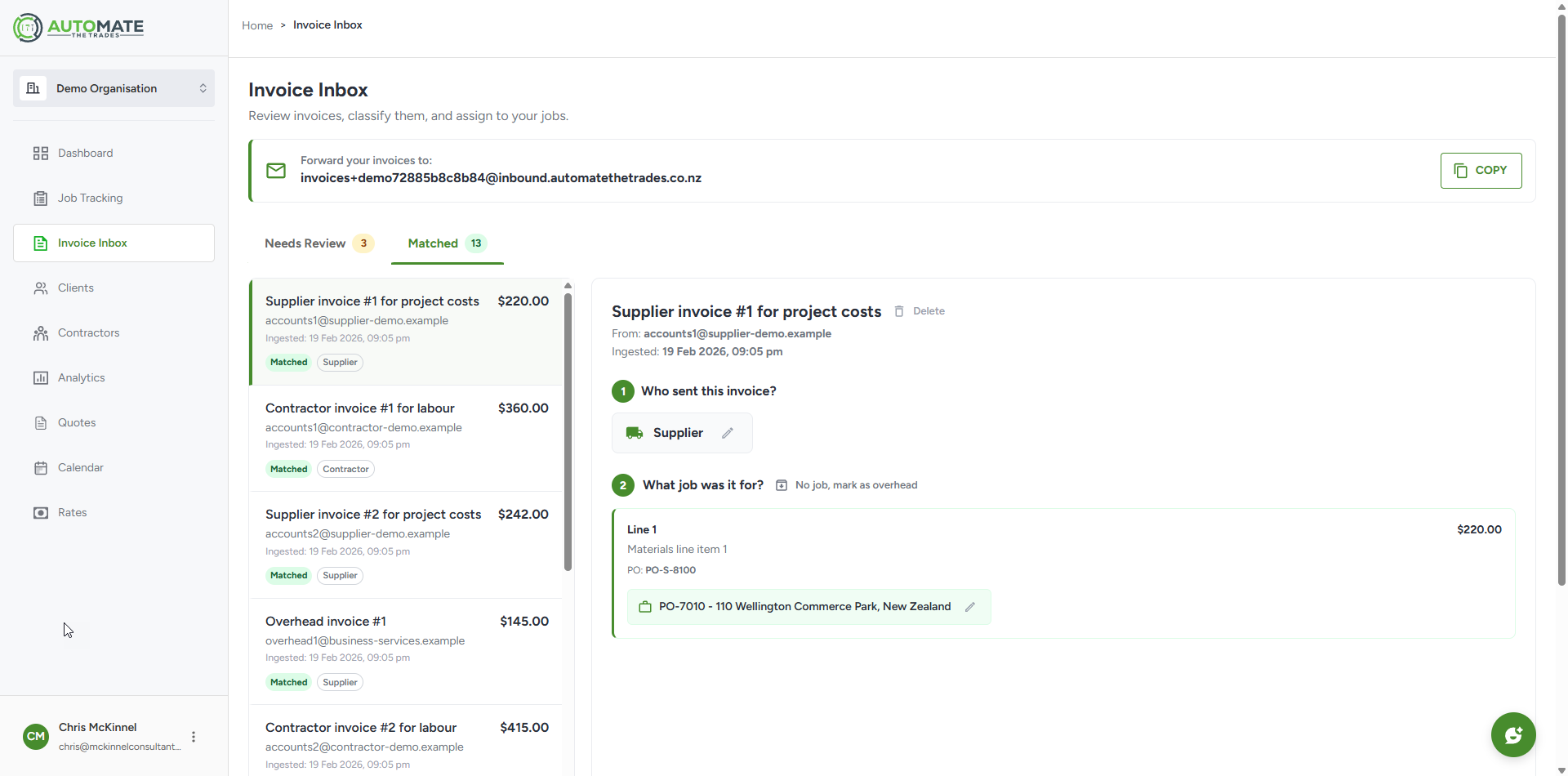
Supplier invoices auto-matched to jobs by the AI — zero manual sorting.
Analytics
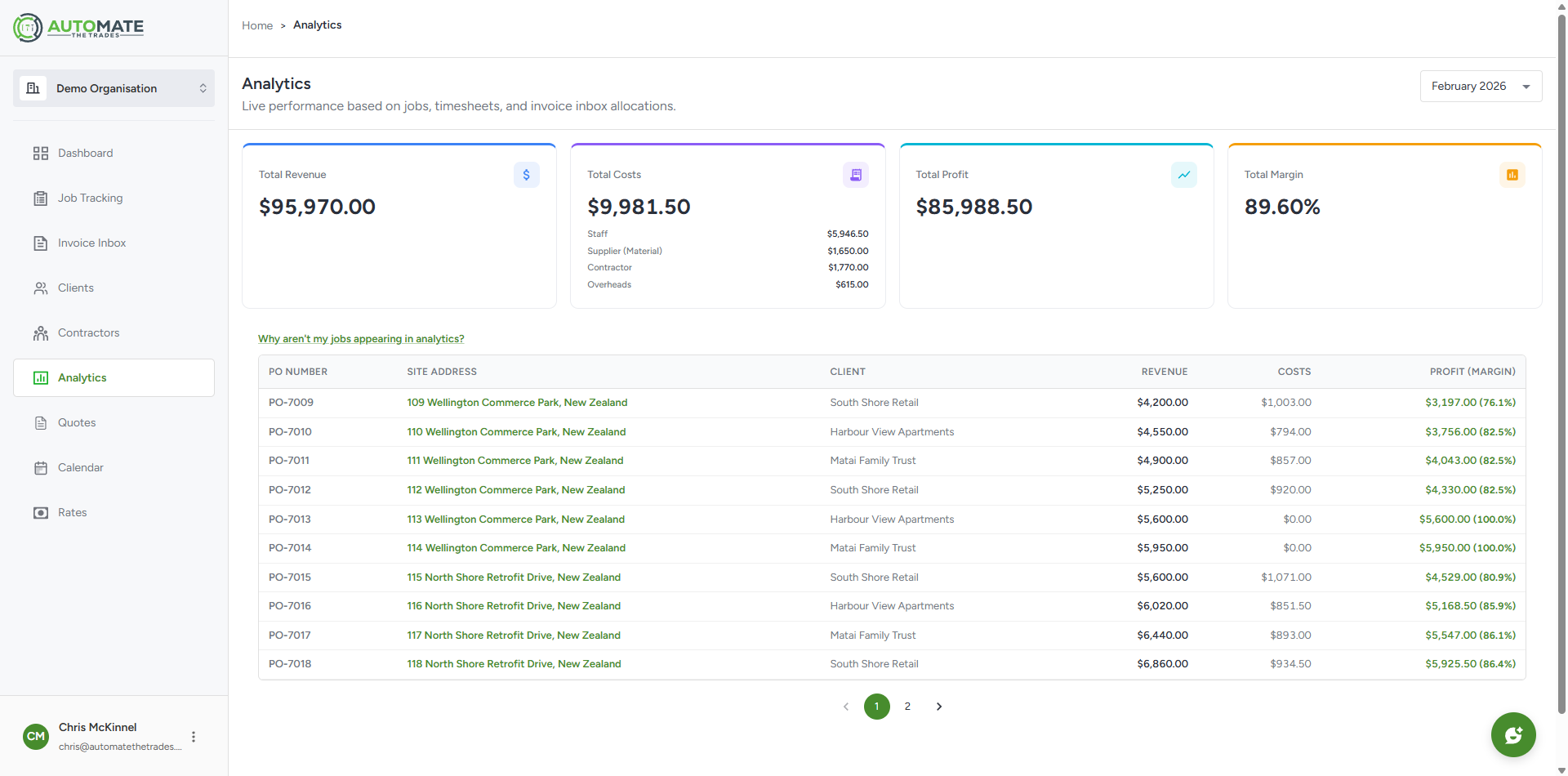
Revenue by job, contractor utilisation, and outstanding invoices at a glance.
No credit card required — free to explore
Your step-by-step guide
Follow these eight steps to go from sign-up to a fully running trade business — all powered by Mate.
Create your organisation
Set up your business in ATT — add your name, trade type, and connect Xero if you have it. Takes about two minutes.
Create a quote with Mate
Open the Mate AI chat and say something like "Create a quote for John Smith for interior painting at 12 Main Street." Mate will guide you through the details and generate a professional quote ready to send.
Create a job
Once a quote is accepted, tell Mate "Convert that quote to a job" or create a new job directly. Mate handles the details and sets everything up in seconds.
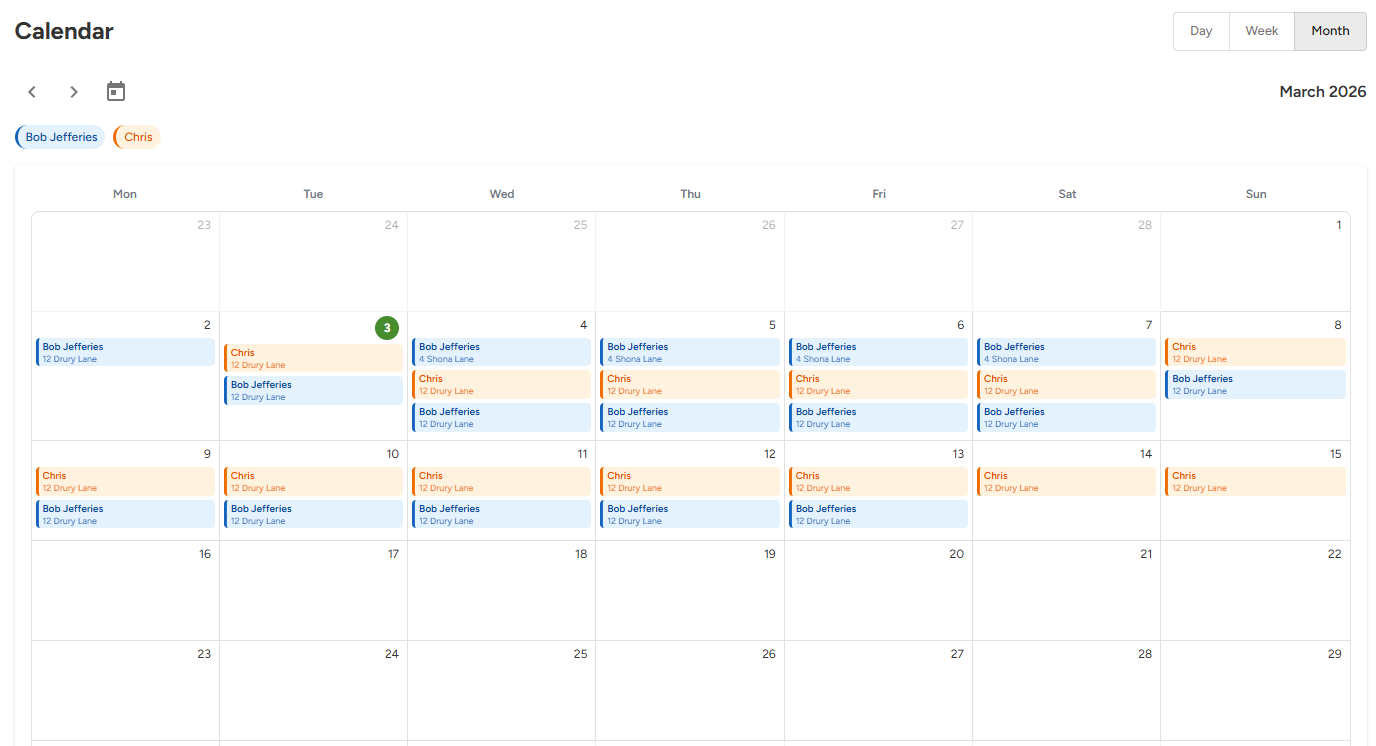
Schedule a contractor
Tell Mate "Schedule Alex for the Smith job on Tuesday at 8am." Mate will create the job assignment and send a calendar invite automatically.
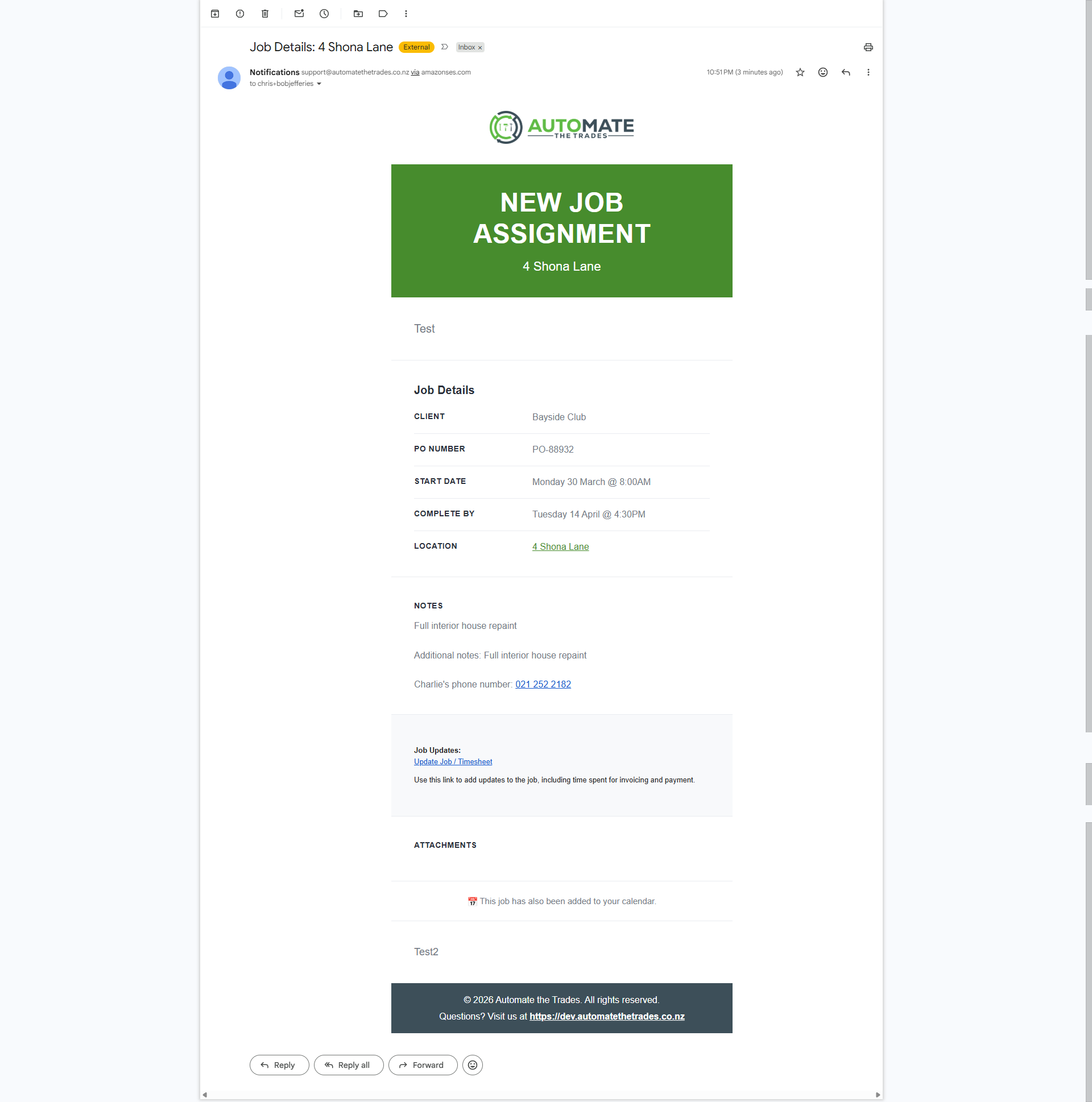
Update job progress from email
Your contractors can reply to their job sheet email to update progress. Those updates flow straight into ATT — no app needed for your team in the field.
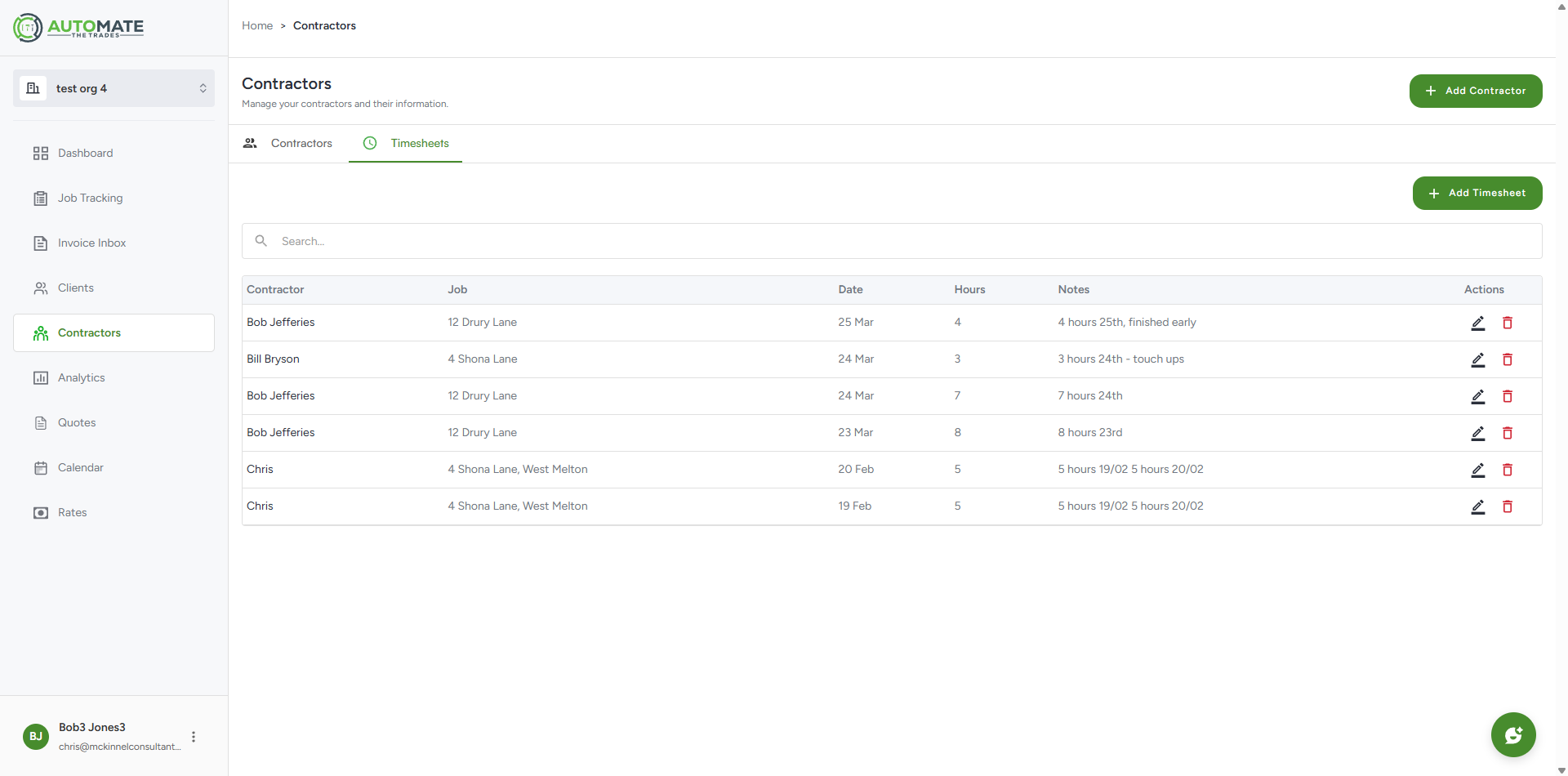
Check timesheets
Head to Contractors → Timesheets to see logged hours across all jobs. You can add or edit entries from here too.
Send invoices to the inbox
Forward supplier invoices (materials, subcontractors) to your ATT inbox email. The AI reads them, categorises the cost, and matches them to the right job automatically.
Check analytics
Visit Analytics to see revenue by job, contractor utilisation, and outstanding invoices — all in one place.
Ready?
Ready to get started?
Join NZ trade businesses already saving hours every week. Start your free 14-day trial — no credit card required.
Start Free Trial